Skip to content

Everything TestPilot does

One test per feature, rerun every day, with clear rules for what counts as proof.

Explores your site like a visitor

Once TestPilot is installed, it starts from your website’s address.

Explores like a visitor

Paste your address. It explores the site and maps what a visitor could use.

Learn more
  • Waits for each page to settle (network quiet, page stable) instead of sleeping for a fixed time.
  • Closes cookie and consent banners and popups, in several languages.
  • Scrolls to load lazy content, follows single-page-app route changes, and reads open shadow DOM and embedded frames.
  • Records which links and buttons sit in the header, menu or footer, and finds those regions by layout when a page has no landmarks.
  • Records repeating lists (three or more cards or rows) with a checked selector, so later checks can count them.
  • Covers 60 pages by default, adjustable per project. Once three pages of a section share one layout, the rest are noted without using the budget, so hundreds of look-alike posts don’t crowd out your other pages.
  • Never opens a Log out link. You can also upload PDF or Markdown documents for extra context.
Your website’s addressUp to 60 pages by default
  • Pages
  • Forms
  • Buttons
  • Links
  • Lists
  • Widgets
  • Search boxes
  • Upload fields

Tests, written for you

A focused test suite, written for you, that you can still shape by hand.

One-click Auto-Test

Turns the crawl into a focused suite: one test per feature, built to rerun daily.

Learn more
  • A Page Load Check per crawled page, up to three per page template; the rest are counted as covered by their template.
  • Functional tests are written for the first 15 pages; other pages get a Page Load Check.
  • A Link Check of every same-site header, menu and footer link on the live homepage, plus a Legal Links Check when the homepage has privacy, terms or cookie links.
  • One navigation test per main-menu link (up to eight).
  • One test per unique form, with every visible field filled.
  • One test per search box and per AI assistant for the whole site, even when it shows on every page.
  • Widget checks for tabs, accordions, filters, sorting and carousels (up to five per project).
  • Tests never depend on today’s data: no record names, and counts only like “at least one”. A test that still breaks the rules is saved disabled as “Needs review”, never active.

Plain English or step editing

Describe a test in words, or edit its steps.

Learn more
  • A title and description become executable steps, grounded in the elements the crawl actually found on that page.
  • Every step can be edited, reordered or rebuilt from the description.
  • Regenerate opens the test’s page, tries its actions for real and rewrites the test from what actually happens. A test of something the page doesn’t do is replaced by one that works.
  • The rewritten test runs once before it’s saved; one that doesn’t pass is saved switched off as “Needs review”, never active.
  • Any test can be switched off, or back on, from its Edit window.
  • Each change to a test’s steps keeps the previous version.
  • AI test suggestions read what the crawl learned and propose tests you haven’t written.

Data-driven runs

Upload a CSV or JSON file and run the same tests once per row.

Learn more
  • The Data tab turns CSV or JSON into rows; each selected test runs once per row.
  • Values and files from the Data tab are used exactly as given, in forms and uploads.
TestPilot · Project · Tests
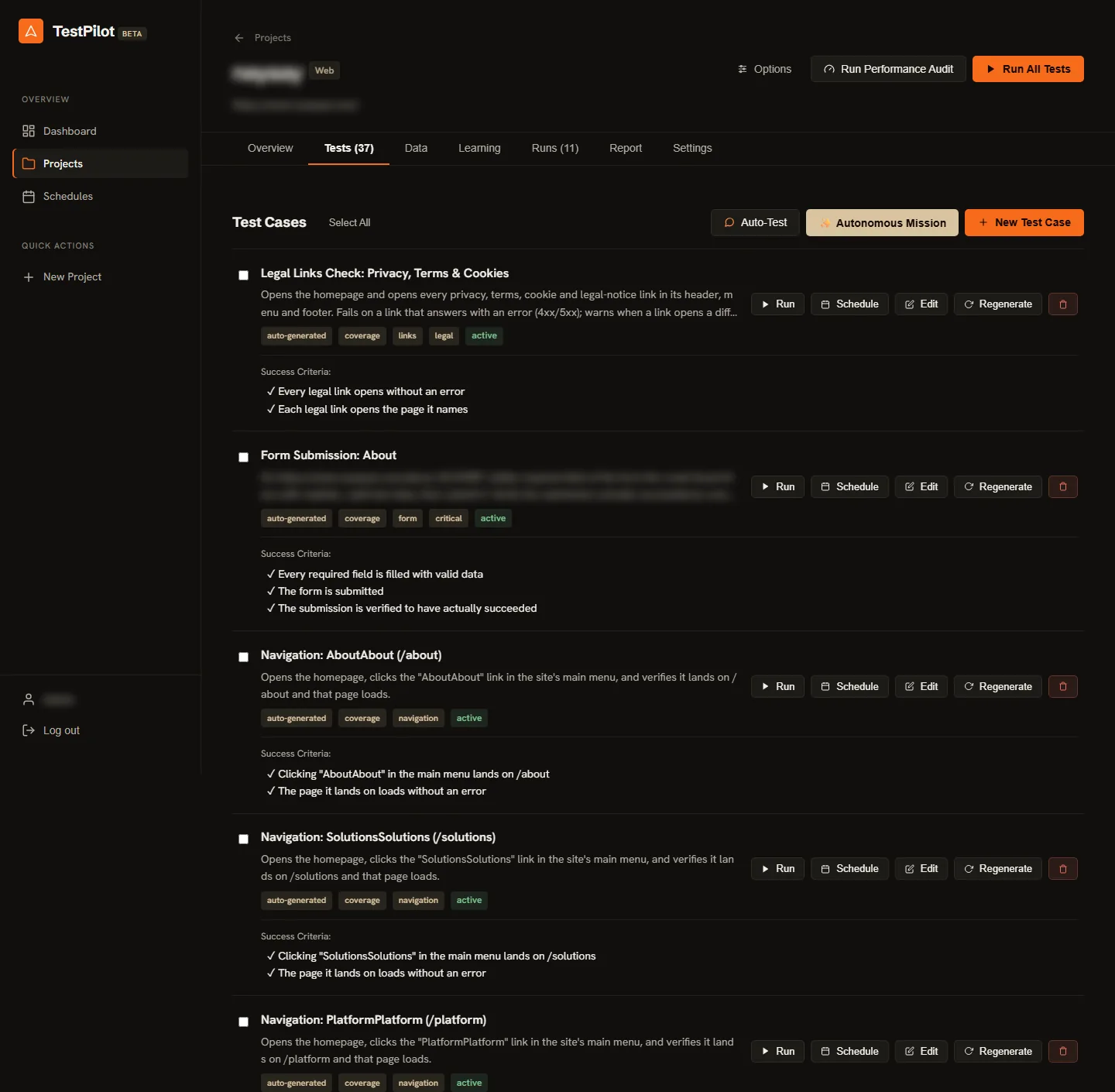
A project’s Tests tab listing tests written by Auto-Test (a legal links check, a form submission and menu navigation checks), tagged auto-generated and coverage, each with plain-language success criteria and Run, Schedule, Edit and Regenerate buttons
Tests Auto-Test wrote for one site: a legal links check, a form submission and menu navigation, each with its success criteria in plain words. The site’s name and addresses are blurred. Full screenshot

Runs safely on your live site

A real Chromium browser, careful about what it touches.

Logins, including 2FA

Tests pages behind a login, with authenticator codes for two-factor.

Learn more
  • Login form, social login, session cookies, bearer token or Basic Auth.
  • Two-factor codes from your authenticator secret (standard TOTP, 30 seconds, 6 digits).
  • A “Test login” button proves the login before you save it.
  • Every run proves the login before any test. If it fails, the run stops and says so: tests are never run logged out.
  • If the site sends a run back to its login page, TestPilot logs in again.
  • Token and Basic Auth headers are only sent to your site’s host. Passwords, tokens and secrets are never sent back out by the app.

Uploads with real files

Each upload field gets a readable file it accepts. Nothing to prepare.

Learn more
  • The file type follows what the field accepts: PDF with real text, Word document, spreadsheet, CSV, JSON, text, or an image with text on it.
  • Its content fits the words around the field: a CV, an invoice, a contract, a judgment, a report or a letter. Otherwise Claude writes a short document for the page.
  • All content is fictional and says so. A file from your Data tab is used instead if you provide one.
  • After Generate or Summarize, the check waits while the page says it’s working, up to two minutes.

Search, filter and sort

Checks the results really change, not just that a box exists.

Learn more
  • Search: when the test runs, it picks a word from an item’s name on the page, types it, and passes only if every result contains it and the list got shorter.
  • A “nothing found” message never counts as a pass.
  • Filter: every item shown must carry the chosen value, compared with the list before the click.
  • Sort: reads the item titles and checks they’re really in the chosen order.
  • No saved search words or named results, so tests keep working as your content changes.

AI assistant check

Asks your chat widget a real question and checks for a real answer.

Learn more
  • One test per assistant for the whole site.
  • A fallback message, an error, or raw tool-call text leaking into the reply is not an answer.
  • The reply has to be seen on screen by Claude’s vision before the test passes.

CAPTCHA: never bypassed

A page behind a CAPTCHA is reported as Blocked, never worked around.

Learn more
  • Recognises reCAPTCHA, hCaptcha and Cloudflare Turnstile, and HTTP 403/429 bot responses.
  • The result is Blocked, which never counts against your site’s health.
  • The browser never hides that it’s automated.

One clean retry

A failure from a file that didn’t load gets one rerun on a fresh page.

Learn more
  • If a failed test’s page had a file fail to load, and the file isn’t confirmed still broken, the test reruns once on a fresh page load and must pass on its own.
  • A file that fails again isn’t retried for the rest of the run.
  • Stop cancels a running job; every browser, context and page is closed even on errors.

A pass means it worked

And a failure says whose problem it is.

Warnings

Works, but not what it says: a “Privacy” link that opens your Contact page.

Learn more
  • A warning is a passed result with a note attached.
  • Examples: a legal link opening a different page than it names, or a form answering “already subscribed”.
  • Shown in every report and email; never lowers health.
  • Broken (a 4xx or 5xx answer) is never a warning. It’s a site bug.

What decided, what changed

Each result says what decided it. Each test change keeps the version before.

Learn more
  • The step log records what decided each check: the page, the network, the address, or vision.
  • Every change to a test keeps the previous version with its reason: edited, self-healed, regenerated after trying it on the page, or restored. Its title and success criteria are kept too.
  • Every run stays in the run history, with its results, screenshots and report, until you delete it.
  • Every report email that was sent, skipped or failed is logged.

Whose problem is it?

Every result that didn’t pass is sorted, so only real site bugs count against your site.

Learn more
  • Site bug: a real failure of a check that actually ran. The only class that lowers health.
  • Needs test maintenance: the test asked for something that isn’t there, opened the wrong page, or expected an old address.
  • Tool error: no network answer at all, a lost login, or an engine crash.
  • Blocked: a CAPTCHA or an HTTP 403/429 bot response.
  • Pass rate is passed ÷ (passed + failed), active tests only. Failed tests also get a plain-language root-cause note.

Pass rate is passed ÷ (passed + failed), active tests only. Failed tests also get a plain-language root-cause note. A feature that works but isn’t what it says passes, with a warning.

A test didn’t pass
  • Site bug

    A check ran and your site failed it.

    Lowers site health
  • Test issue

    The test needs a fix, not your site.

    Doesn’t lower health
  • Tool error

    TestPilot’s own problem: no answer, lost login, crash.

    Doesn’t lower health
  • Blocked

    A CAPTCHA or a 403/429 bot response.

    Doesn’t lower health

Reports with pictures

What happened in each run, and how your site does over weeks.

See exactly what happened

Real site issues come first, each with its steps, screenshots and reason.

Learn more
  • A self-contained HTML report per run, plus the in-app run page.
  • Each screenshot is one screen of the browser window, taken once the screen has loaded, with the step’s element outlined.
  • Check screenshots frame the result (a confirmation, an error, a chat reply), with floating chat bars hidden for that shot only.
  • Optional video of the run; scheduled runs always record.
  • Insights: flaky tests, recovered tests, slow tests, and visual changes (a pixel comparison of step screenshots with the previous run).
Run report (HTML)
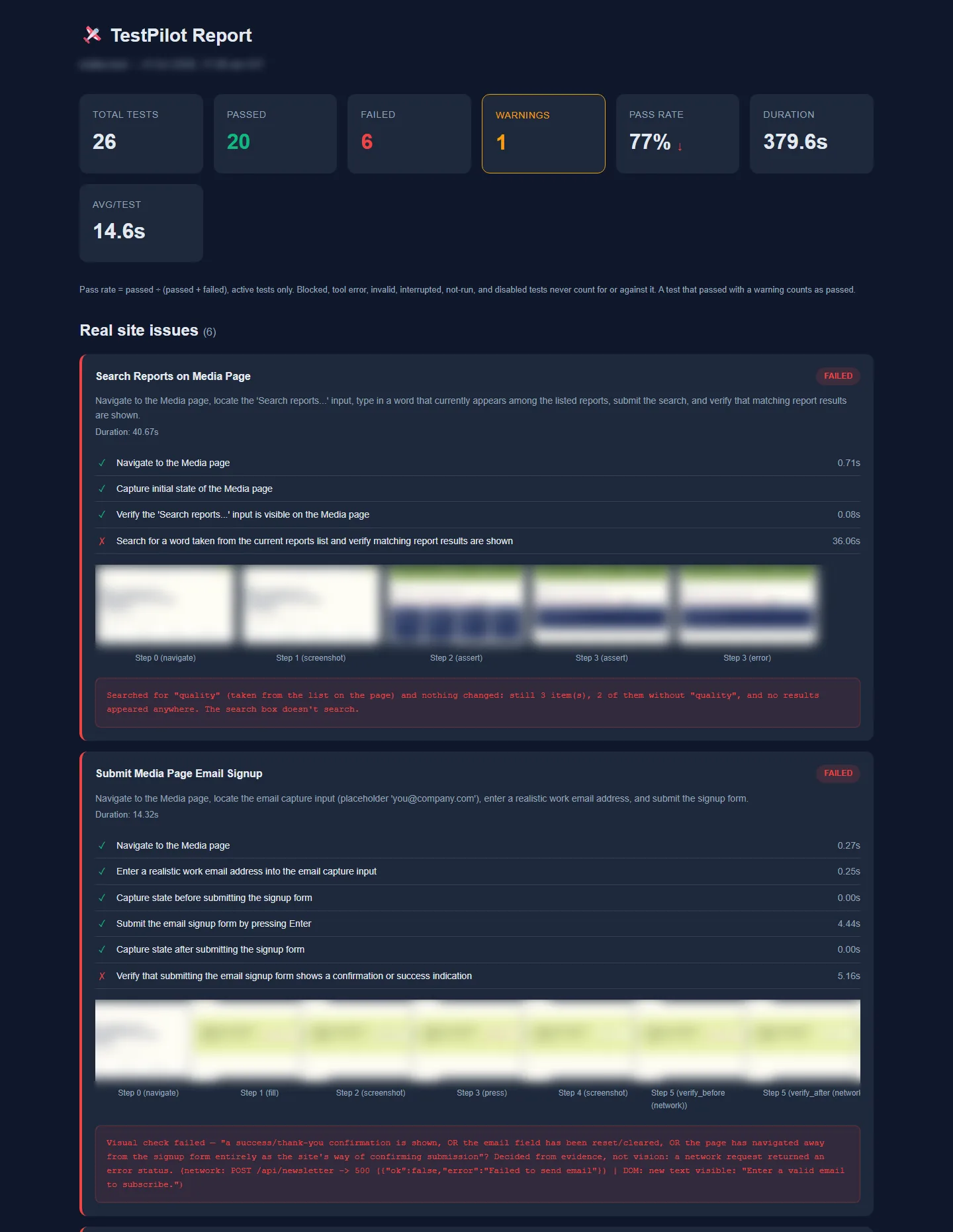
A per-run HTML report: summary tiles for total, passed, failed, warnings, pass rate, duration and time per test, the pass-rate rule, and the Real site issues section with two failed tests, their steps, step screenshots and the reasons
The run report starts with real site issues, each with its steps, screenshots and the reason: a search box that doesn’t search, and a signup form whose server answered with a 500 error. Site name and step screenshots blurred. Full screenshot

How your site does over weeks

A health score made of weighted parts, and every test’s recent runs.

TestPilot · Project · Report
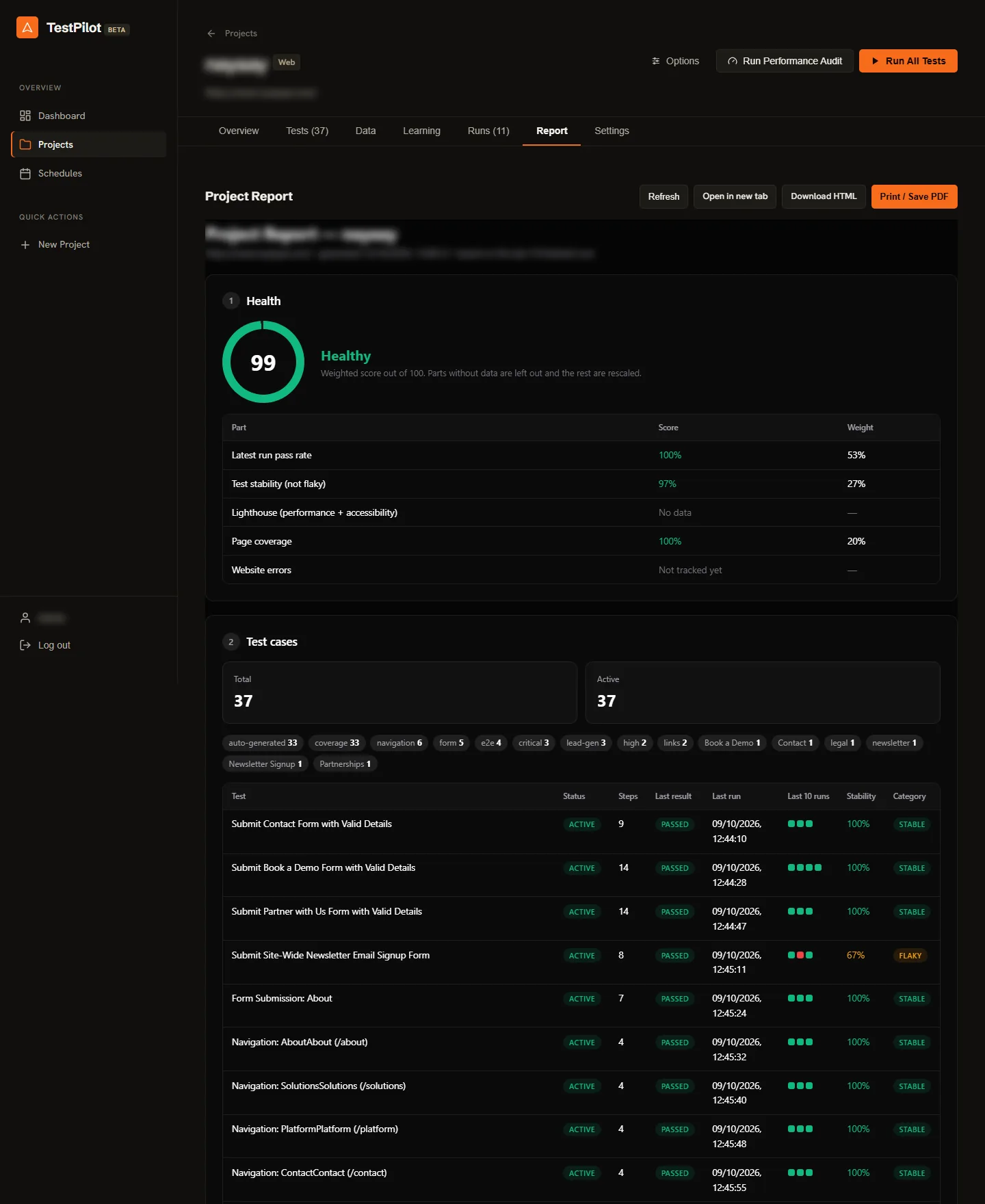
The project health report: a health score with its weighted parts, test case totals, tag chips, and a table of every test with its last ten runs, stability and a flaky label
The project report opens with a health score made of weighted parts. The full screenshot also shows every test’s last ten runs and its stability. Full screenshot
Learn more
  • Health score from the latest pass rate (40), stability (20), Lighthouse (15), page coverage (15) and website errors (10). Missing parts are left out and the rest rescaled.
  • Pass-rate trend, failures grouped by pattern, self-healing, performance, visual changes, page coverage and schedules.
  • A run that was cut short is marked incomplete rather than graded.
  • View it in the app, download it as HTML, or print it or save it as a PDF from your browser.

Runs on its own, report by email

Once, daily, weekly or every N minutes.

After a scheduled run, the report arrives as a PDF.

Learn more
  • Run once, daily at a set time, weekly, or every N minutes (at least 15).
  • Scheduled runs are headless and record video.
  • After a scheduled run, the report is emailed as a PDF, at most once per schedule per day. Site bugs come first, then warnings, then test issues.
  • Email goes over SMTP that you configure (a Gmail app password by default), to one recipient list for the whole instance. Manual runs never send email.
  • Hung or orphaned runs are cleaned up automatically.

At most one email per schedule per day, over SMTP you configure, to one recipient list for the whole instance. Manual runs never send email.

TestPilot · Schedules
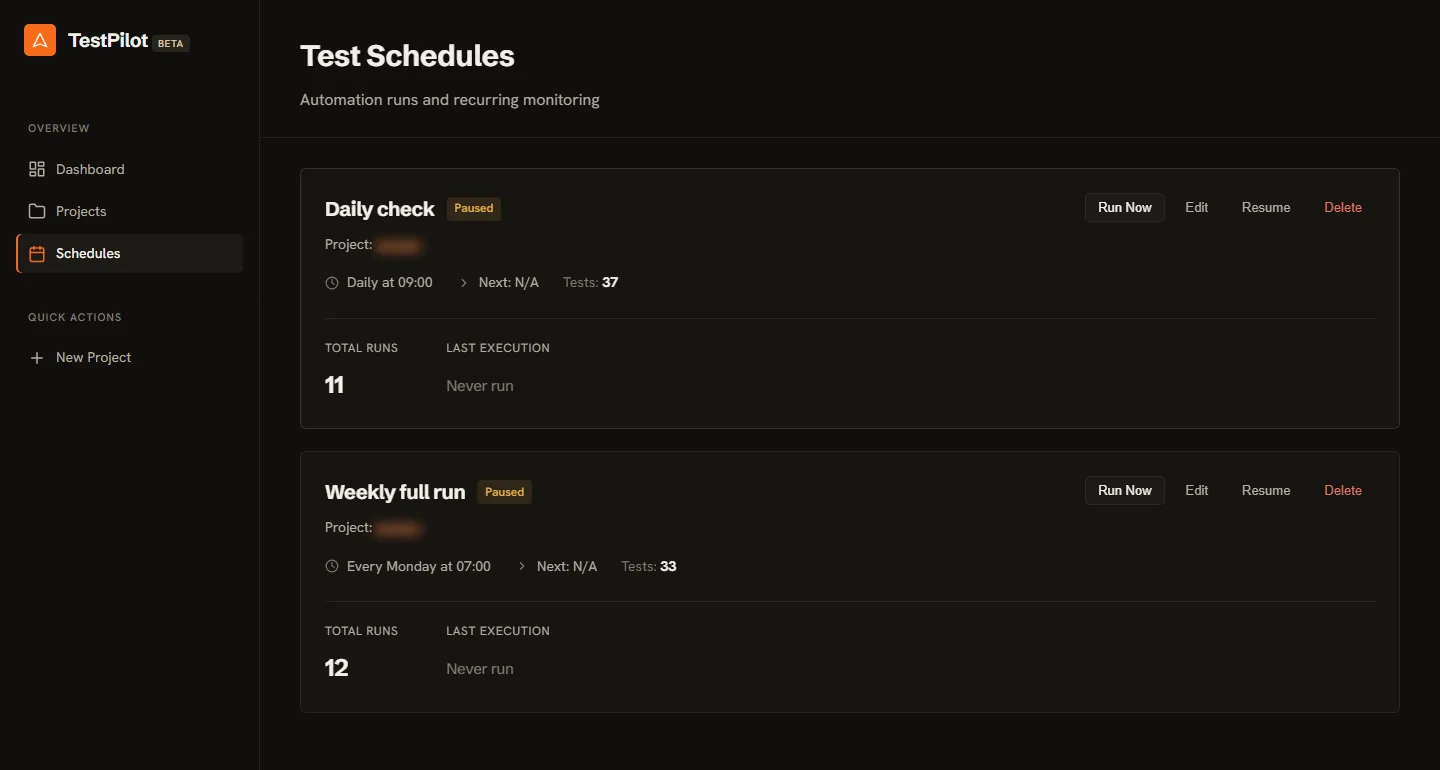
The Schedules page: a daily and a weekly schedule, both paused, each with its project (blurred), when it runs, how many tests it runs, its total runs and last run, and Run Now, Edit, Resume and Delete buttons
Schedules: when each one runs and how many tests it runs. These two are paused; Resume turns them back on. Project names blurred. Full screenshot

Accessibility and speed

An axe scan on every web test. Lighthouse scores when you ask.

Learn more
  • An axe accessibility scan runs at the end of each web test; violations are listed on the run page and counted in the project report.
  • Lighthouse is opt-in per run, or a separate “Run Performance Audit” button. Scores and the full Lighthouse report are saved, with a trend over time.

Beyond the browser

An early look at apps.

Mobile apps (experimental)

Drives iOS and Android apps on a local simulator or emulator.

Learn more
  • iOS on the Simulator via Appium, Android on an emulator or device, and Flutter apps on either through a vision-based driver.
  • Needs a locally running emulator or simulator (and Appium for iOS).
  • Lighthouse, axe, recording and the website Auto-Test rules are web-only.

Want to see these checks on your site?

Book a demo to see a crawl, the tests it writes, a run and its report, on a website you choose.